
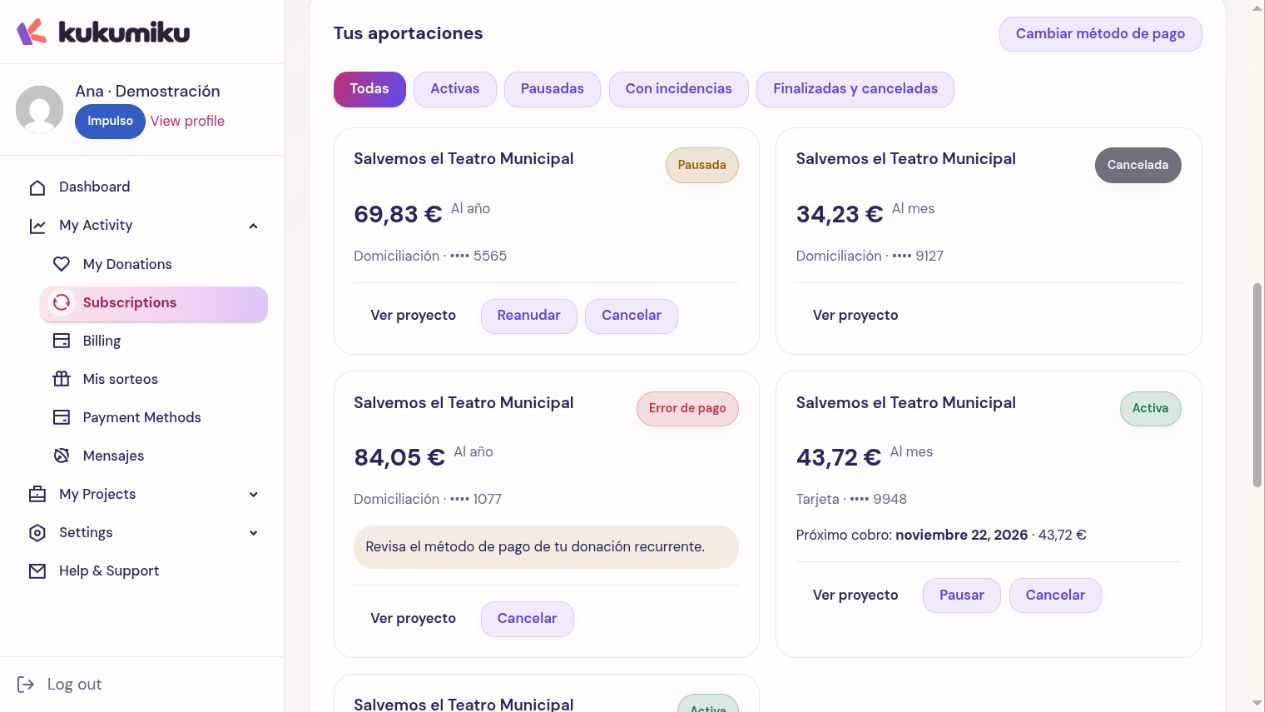
Open My recurring contributions and select the right collaboration. Before modifying it, review its status, amount, frequency, and next charge date. Available actions depend on its current status.
Change the amount or destination
Use the edit option when it appears. Enter the new amount within the specified limits and confirm the change. Afterwards, check the saved value and the information for the next charge.
If the screen allows you to redistribute your collaboration across causes, select the available campaigns and review the amounts for each one. This option depends on cause compatibility and collaboration frequency. Do not assume that any campaign or any combination of frequencies can be added.
Pause and resume
- For an active collaboration, choose Pause if you want to temporarily stop future charges.
- Check the confirmation and make sure it appears as Paused.
- To collaborate again, use Resume on the paused collaboration.
- Check the status and the next date displayed after resuming it.
If the status is Payment error or Suspended, follow the instructions to resolve the issue. Not all stopped collaborations resume with the same button.
Cancel
Select Cancel and confirm only after verifying the affected collaboration. Canceling stops its continuation and any pending charge orders that should be canceled; it does not constitute a request for a return of contributions already charged.
To support a cause again after canceling, follow the options offered by the campaign. Do not confuse canceling a collaboration with closing your account.
If the change coincides with a charge
Review the outcome of the charge and the modification separately. If you see an unexpected transaction, contact support with the collaboration reference and the date of the action. Do not create another collaboration to make up for a status you do not understand yet.